Notion Progress Bar: Track Goal Steps With a Rollup
notion progress bar: connect goal steps, a completion rollup, and a formula to see what is done. Follow a labelled demo, then adapt it to your workspace.
By Notion Life OS by Cosmo Suite · Editorial policy
Published · 8 min read
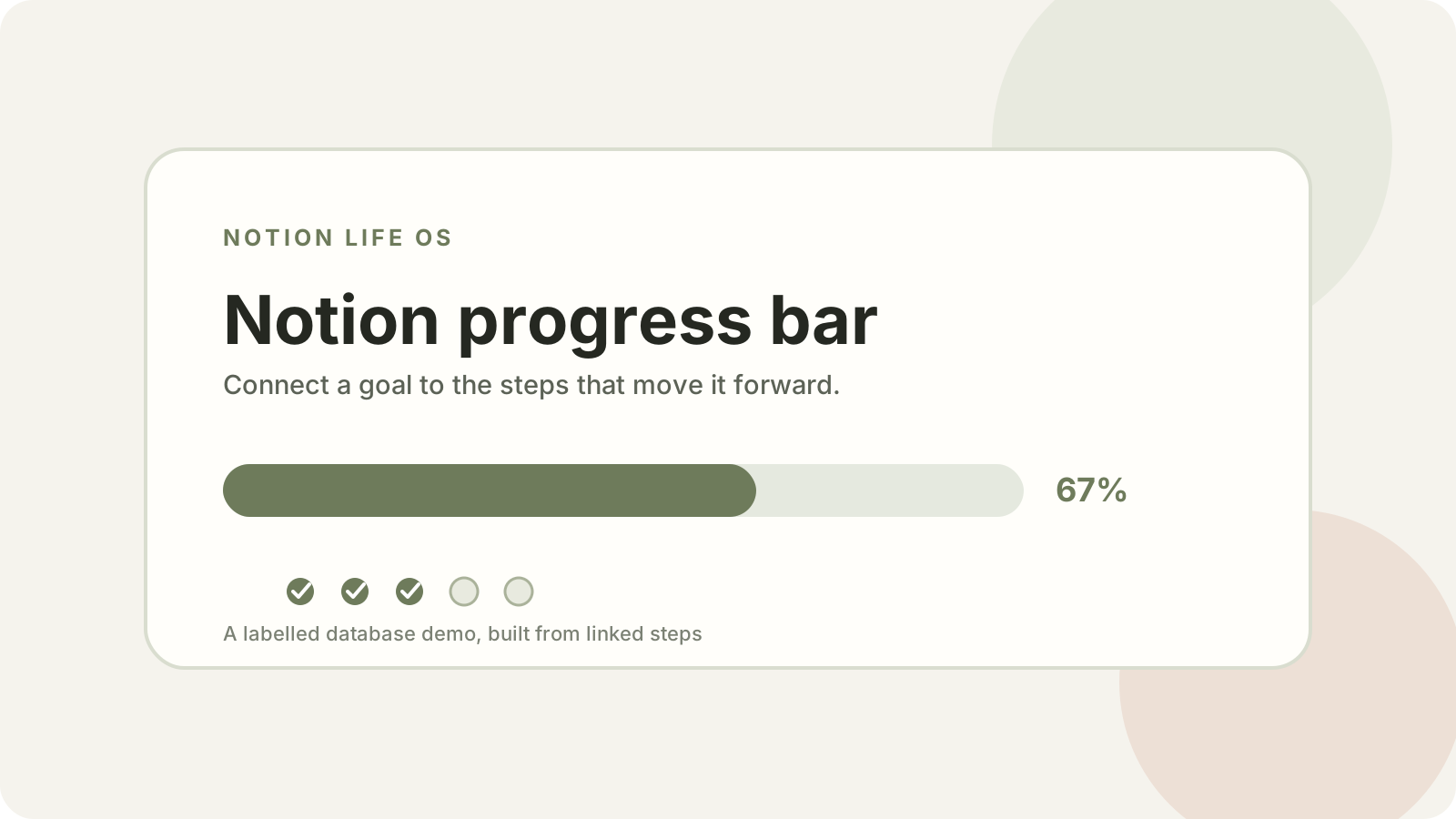
A progress bar in Notion is useful when it answers one plain question: how much of this goal's defined work is complete? You can make one with a Number property formatted as a bar, or connect a goal to its steps and calculate completion from those records.
For the connected version, this guide uses a clearly labelled demo: one Goals database, one Steps database, a relation, a rollup and a formula. Notion Life OS does not include this progress bar. In the demo, each checked step updates the goal's completion without a second manual counter.
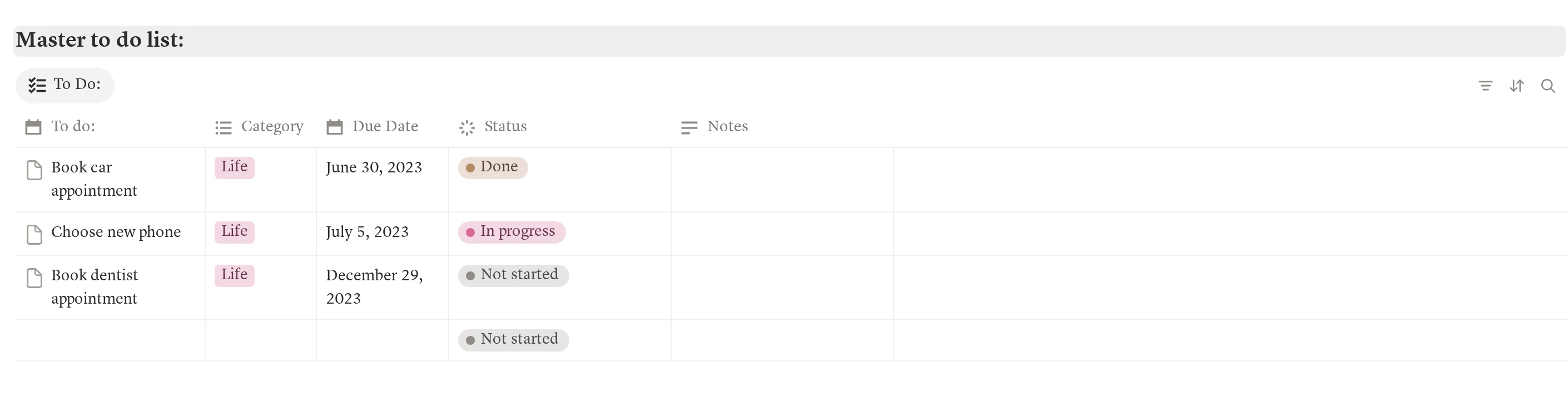
If you want to see how a task list fits into a broader workspace, Notion Life OS has a master to-do list within a five-area system. You can add the demo below to your own Notion workspace, or adapt it to a database you already use.
Notion Progress Bars at a Glance
The simplest progress bar uses one number. The connected version calculates that number from related steps, which is easier to maintain when the work already lives in a separate task database.
| Setup | What it shows | Choose it when |
|---|---|---|
| Number property | A value you enter, such as 0.6 | You update progress by hand |
| Formula property | A value calculated from properties on the same page | The needed values already sit on one page |
| Relation + rollup + formula | Completion from linked steps in another database | A goal has its own task list |
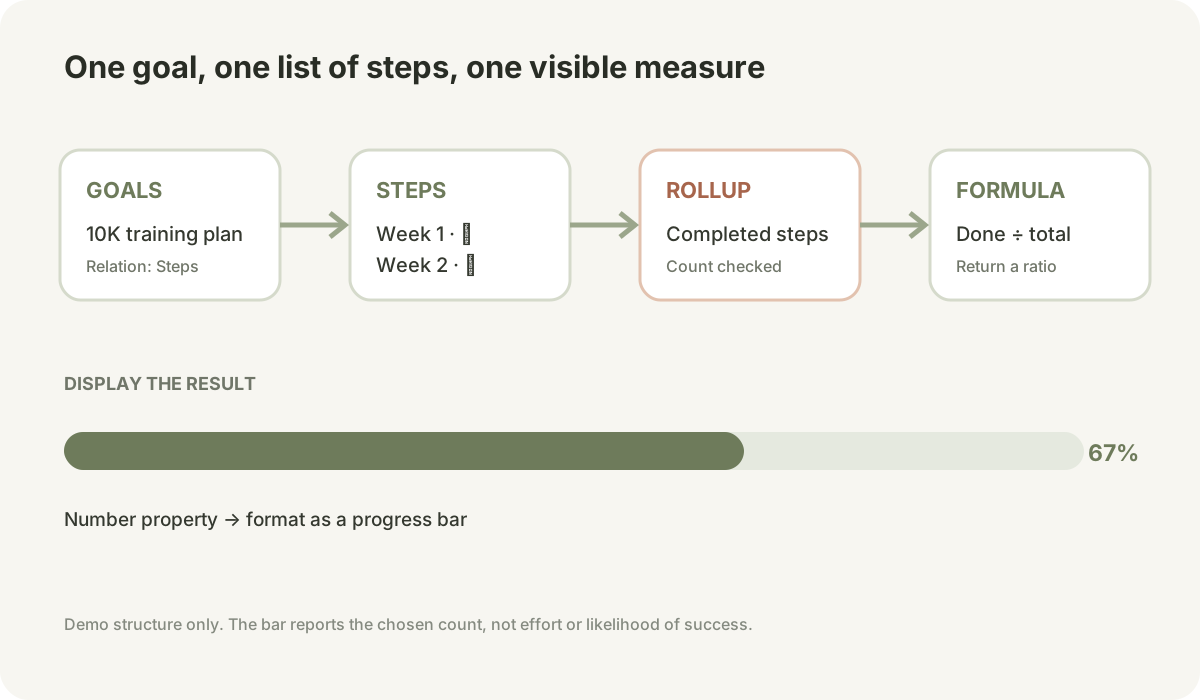
For a goal broken into steps, use the third setup. The relation links each goal to its steps. The rollup counts completion. The formula divides completed steps by total steps. The Number property displays the result as a bar.
What Does the Bar Connect To?
A progress bar is a view of data, not a plan by itself. It can show that 8 of 12 listed steps are checked, but it cannot tell you whether those steps are the right work or whether they are equal in effort. The values here are an illustrative worked example, not a result from a Notion Life OS user.
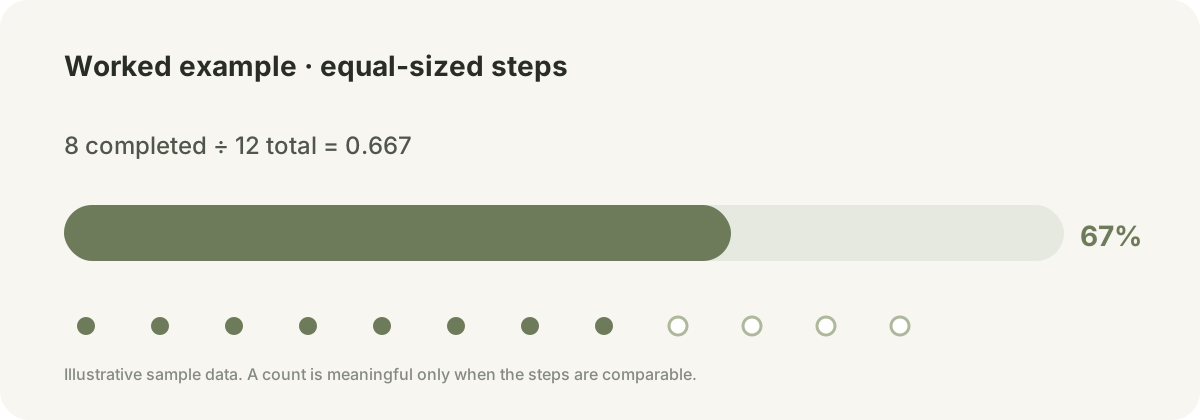
Use a goal with a clear finish and a set of steps that are similar enough to count. For example, a demo goal might be “Prepare a 10K training plan.” Its twelve weekly actions are sample data, not a prescribed training plan. The bar can show 8 of 12 complete, or about 67%, because the denominator is visible and every step represents one planned week.
Do not treat that percentage as a measure of fitness or likelihood of reaching the goal. If one step represents an hour and another represents a month of work, the bar overstates what the count means. Split larger steps or track milestones separately.
Choose the unit before making the bar. If you already track tasks in a master list, a connected Notion task system can keep the work in one database. Then each goal can display its linked tasks without creating duplicate copies.
How Do You Build the Demo Databases?
Create one Goals database and one Steps database for this demo. A database stores pages and their properties; each row in the Steps database will represent one action toward a goal. A relation is a link between pages in separate databases. A rollup is a summary of a property from related pages. A formula is a calculation based on other properties.
In Goals, keep the title property and add a Status property if you want to track whether a goal is active. In Steps, keep a title and add a Checkbox property named Done. Add one row for each action. Make the names concrete enough that you can recognise completion without interpreting them again.
For the 10K example, sample step titles could be “Choose a training schedule,” “Complete week 1,” and “Review the first month.” Add twelve weekly rows only if twelve is the actual structure you intend to track. The number is illustrative, not a claim that a particular training program takes twelve weeks.
Now add a Relation property to Goals and connect it to Steps. Name it Steps. You can choose a two-way relation if you also want to see the parent goal from each step. Notion relations link pages between databases; the reverse property is optional for this calculation.
Keep the relation limited to the relevant goal pages. If a step belongs to two goals, the same checkbox may affect both bars, which may or may not match your meaning. When the link structure is clear, the relation becomes the path the calculation follows.
How Do You Count Completed Steps?
Add a Rollup property in Goals to summarize the Done checkbox values from related Steps pages. Name it Completed steps, choose the Steps relation, select Done, then choose the calculation that counts checked boxes.
Add a second Rollup named Total steps. Use the same Steps relation, select the title property, then choose a count calculation. This keeps the denominator tied to the pages actually linked to the goal. Notion's relations and rollups guide describes selecting the relation, property and calculation for a rollup.
| Goal page property | Reads from | Meaning |
|---|---|---|
| Steps | Steps database | Which pages belong to this goal |
| Completed steps | Steps → Done | Number of linked checked boxes |
| Total steps | Steps → Name | Number of linked step pages |
| Progress | The two rollups | Completed divided by total |
Open a goal and link a few steps. Check two boxes and make sure Completed steps changes while Total steps stays at the number of linked pages. This quick check catches a wrong property selection before you format the display.
What Formula Calculates the Percentage?
Add a Formula property named Progress. Notion's formula guide shows how to add a Formula property and open its editor. Use this expression with the exact rollup names above:
if(prop("Total steps") == 0, 0, prop("Completed steps") / prop("Total steps"))
The first condition handles an empty goal. Without it, dividing by zero can produce an error or an unhelpful value. When there are 8 completed steps out of 12, the formula returns 0.666…, a ratio between zero and one.
In the formula property's number display settings, choose Percent if you want to read 67%. If your workspace offers a progress-bar display for that number property, select it and choose a colour. Notion's database properties reference lists Number formatting as including progress bars, while formulas calculate values from other properties. The formula syntax reference lists the operators and functions available to a formula property.
If the formula editor flags a property name, copy it from the database property list. A missing or renamed rollup is a common cause of formula errors. Also check that Completed steps is numeric, rather than returning a list of checkbox values. The rollup calculation controls that result. Notion's formula troubleshooting guide recommends checking property access, syntax and return types when a formula fails.
How Can You Check the Bar?
Use a small set of sample rows before relying on the view. The arithmetic should be predictable, so you can tell whether a wiring issue or a data issue caused the result.
| Test | Completed | Total | Expected ratio |
|---|---|---|---|
| No linked steps | 0 | 0 | 0% |
| One checked of four | 1 | 4 | 25% |
| Half complete | 3 | 6 | 50% |
| All steps checked | 5 | 5 | 100% |
If the value does not change, inspect the relation first. The goal must link to the step pages whose checkboxes you are changing. Next verify that the rollup reads the Done checkbox and counts checked entries. Finally, confirm the formula names match the rollups exactly.
One more check: add a new step and confirm that Total steps increases. If it does not, the new page is not linked to that goal. The bar should reflect linked work, not every row in the Steps database.
For another way to make a task view useful, the Ivy Lee method demo shows a filtered Notion task list. A progress bar answers “how many steps are complete?” while a priority view answers “what should I do next?” Those are related questions, but they need different properties.
What Should You Change When the Bar Misleads?
When the bar rises but the goal still feels far away, the step list may be measuring quantity instead of meaningful progress. Review the denominator and ask whether each row represents a similar amount of work.
If a large task dominates the goal, break it into smaller steps with visible finishes. If step size cannot be made comparable, use milestone labels or a manual estimate instead of presenting the count as an exact percentage. The bar should describe the measure you chose, not imply more precision than the data supports.
For a repeating habit, define a time period such as one week and count planned check-ins in that period. A project bar and a habit tracker serve different jobs: one tracks steps toward an outcome, the other records repeated actions. Notion Life OS includes a weekly habit tracker, but the goal relation and bar described here are a separate demo.
Keep the database structure simple enough to review. If all the steps already live in one master to-do list, reuse that database through the relation instead of copying tasks. If your review also needs dates and events, see the Life OS guide on how those pieces connect.
How We Made and Checked This
We are the Cosmo Suite team that makes and sells Notion Life OS, so we have a commercial interest when we describe the template. This article demonstrates a database setup. The product does not include this progress bar, and we did not test the setup on customer workspaces. Methodology: we checked Notion's public documentation on database properties, relations, rollups, formulas and formula errors on 22 October 2026, then checked the 0-step and complete-step edge cases against the stated ratio. The 10K goal and step counts are illustrative sample data. Read about the publisher and our editorial policy for how we disclose commercial interests and check articles.
Where Notion Life OS Fits
A progress bar helps when its underlying list has a clear connection to a goal. If you already enjoy building Notion databases, the relation and formula above are enough to create your own version.
Notion Life OS is a ready-made personal planning workspace. Its verified contents include a dashboard, five areas of life, daily, weekly and monthly planner pages, a master to-do list, events, a weekly habit tracker and a monthly calendar. It also includes light and dark themes, a Google Calendar link, a weather widget and a YouTube tutorial. The progress bar in this article is an addition you create; it is not included in the template.
Then decide whether goals should draw from the existing master to-do list or from a separate Steps database. The bar is useful only when that choice matches how you review your work.
To continue, compare how a productivity system changes with the size of your life or use the areas of life guide to decide which parts of your system should share a review.
Frequently asked questions
How do I make a progress bar in Notion?
Create a Number property for progress, calculate a value from 0 to 1 with a formula, and format that number as a progress bar. For goal steps in another database, relate the steps to the goal, roll up their completion, then calculate the ratio.
Can a Notion progress bar update automatically?
Yes, when it is based on data that changes. A relation connects the goal to its steps, a rollup summarizes the checked steps, and a formula divides completed steps by the total. The bar changes as the underlying checkboxes change.
Does Notion Life OS include a progress bar?
No. Notion Life OS includes a dashboard, five areas, planners, a master to-do list, events, a weekly habit tracker and a monthly calendar. The progress bar in this article is a demo you add to your own workspace.
What should a goal progress bar count?
Count clear, similarly sized steps that lead to one result. If a step is much larger than the others, split it into smaller actions or use a milestone measure. A bar shows the share of listed steps completed, not the importance or effort of the work.
Why is my Notion progress bar stuck at zero?
Check that the goal is linked to the intended task pages, the rollup reads the correct checkbox property, and completed steps are checked. Then confirm that the formula references the exact rollup property names and that total steps is greater than zero.
Can I use a progress bar for habits?
You can, if you define the period and denominator first. For example, count completed check-ins out of planned check-ins for one week. Keep a habit streak and a project completion bar separate because they answer different questions.
Sources
Keep reading

Build Your Life OS
What Is a Life OS (And the One Thing That Decides Whether It Works)
Life OS means one workspace where your areas of life, tasks, events and habits feed each other. See how the pieces connect and the one test that decides it.
· 8 min read

Build Your Life OS
Areas of Life: How to Choose 5, 7, 8, 10, or 12
areas of life can be grouped in 5, 7, 8, 10, or 12 ways. Compare common frameworks, then choose a small set you can review and use each week.
· 9 min read