What Is a Life OS (And the One Thing That Decides Whether It Works)
Life OS means one workspace where your areas of life, tasks, events and habits feed each other. See how the pieces connect and the one test that decides it.
By Notion Life OS by Cosmo Suite · Editorial policy
Published · Updated · 8 min read
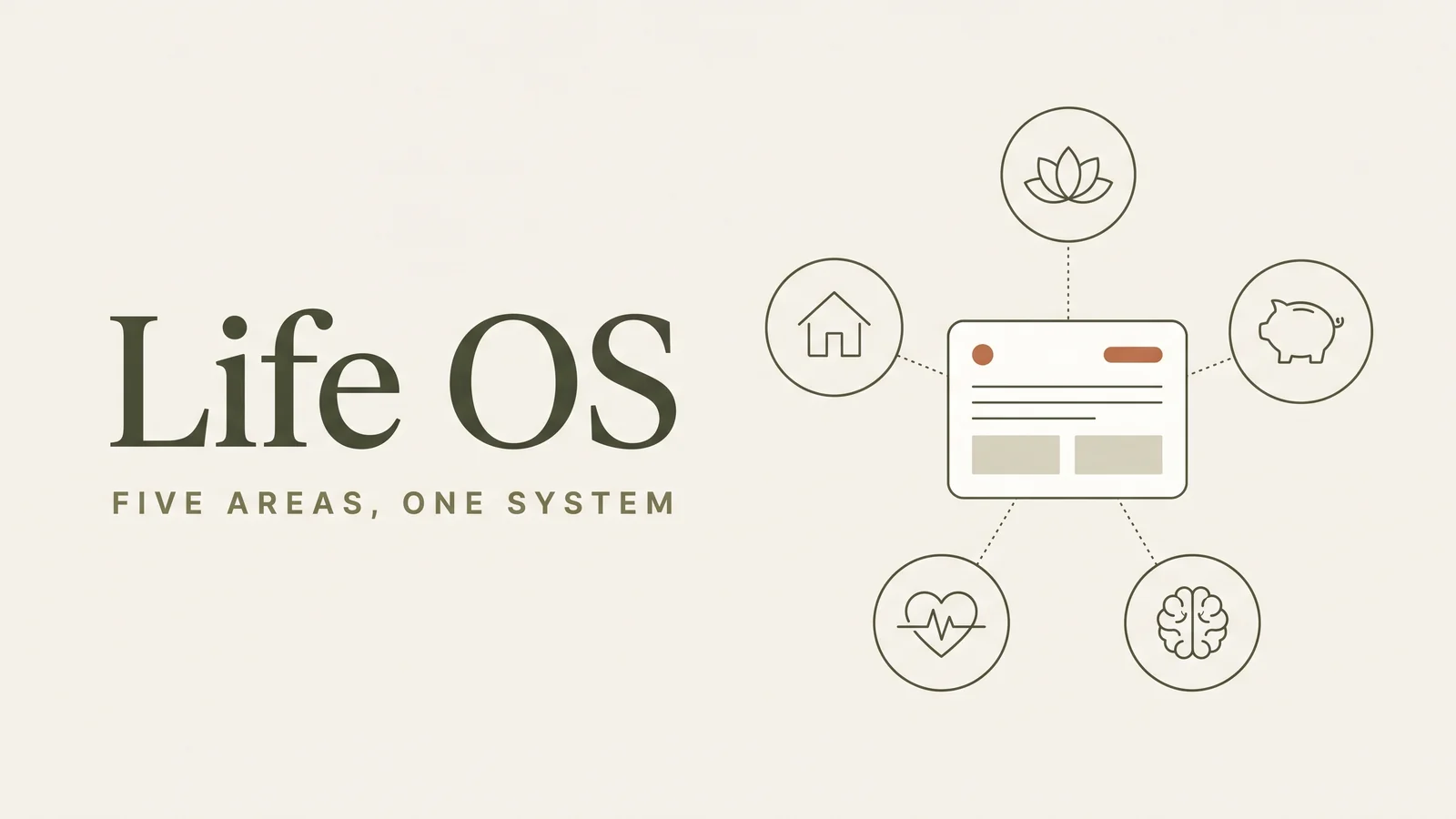
A Life OS is one workspace where each area of your life has a home, and the pages feed each other. A task you add once shows up on today's plan, this week's plan and the month's calendar, and one weekly review reads all of it.
The phrase "operating system" makes it sound more complicated than it is. Most explanations stay abstract and never show the wiring, which is precisely the information you need to build or evaluate one.
Whether a Life OS works comes down to one test: does anything feed anything? Say your weekly page can't see the tasks you added on Monday. Then you have a set of unrelated pages that happen to sit in one app. A ready-made Notion Life OS template with the dashboard and planner pages already connected gives you that wiring on day one.
Life OS at a Glance
A Life OS is easiest to judge by its parts and what each one feeds.
| Part | What lives there | What it feeds | Why it matters |
|---|---|---|---|
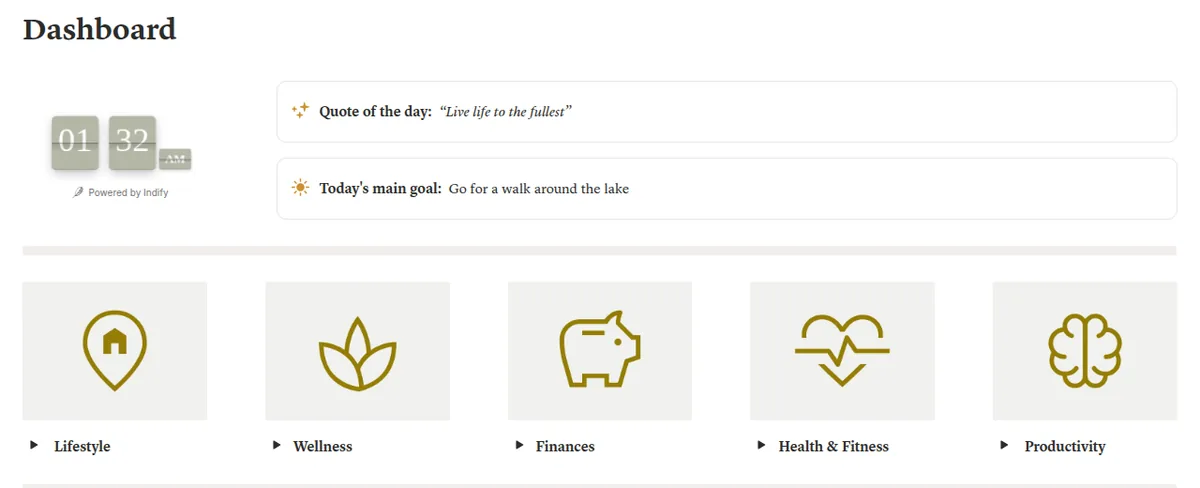
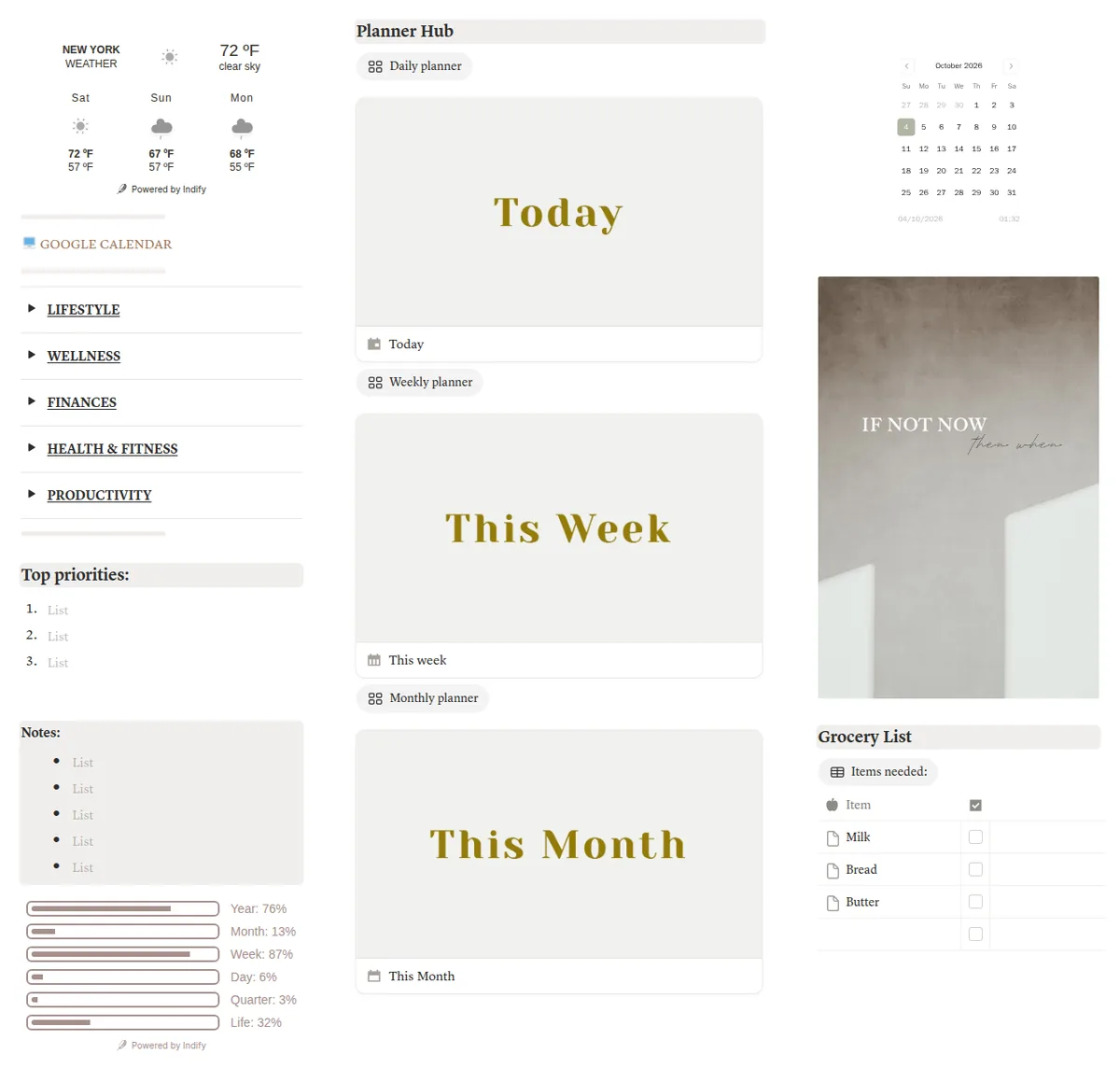
| Dashboard | Quote, today's main goal, top priorities, notes | Your day | One page to open every morning |
| Life areas | Lifestyle, Wellness, Finances, Health & Fitness, Productivity | The dashboard tiles | Every part of life has one address |
| Planner Hub | Daily, weekly and monthly planner pages | Today, this week, this month | Plans at three zoom levels |
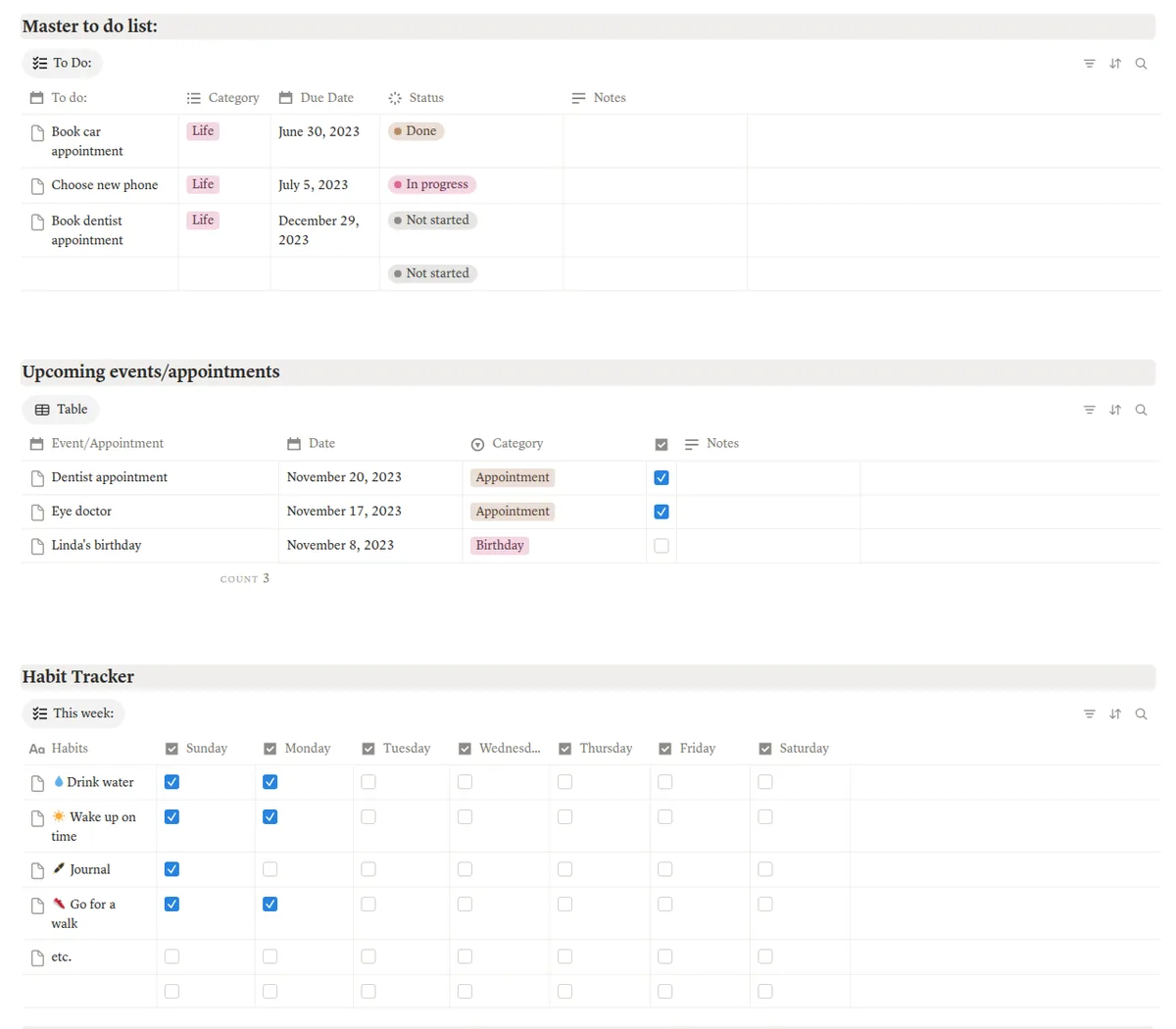
| Master to-do list | Every task with category, due date and status | The planner pages | One list, many views |
| Events and appointments | Dates, categories, a checkbox | The planner pages, the calendar | Fixed dates in one place |
| Habit tracker | Habits by day of the week | The weekly review | Shows what your week did |
Five areas is the configuration of the Notion Life OS template. You can remove any area you would otherwise leave empty.
What Does a Life OS Connect To?
A Life OS connects what you do today to where it belongs, so nothing has to be copied by hand. Notion gives you three ways to make that connection.
A linked view is the same database shown on another page. Notion's guide to linked databases says linked databases "display the same database content across multiple pages". Changes you make in one reflect in the original, while filters stay local to each view. That is how one master to-do list can appear on a daily page filtered to today and on a weekly page filtered to this week.
A relation is a property that connects a row in one database to a row in a different database. A rollup is a property that reads across that relation and counts, sums or shows what it finds. Notion's help center on relations and rollups describes relations as a way "to express useful relationships between items in different databases". Set to count completed tasks, a rollup can show the share as a progress bar, which is what the chain below relies on.
Here is a chain you can add on top of any Life OS. It is not part of our template:
- Create a Goals database with one row: "Run a 10K in March".
- Add 12 weekly training tasks to your master to-do list, one per week.
- Relate each task to the goal.
- Add a rollup on the goal that counts completed tasks: 3 of 12 done shows 25 percent.
- On Sunday, filter for goals under half done with fewer than 4 weeks left.
Each step uses ordinary Notion functionality, and the chain holds together because every record identifies the page it serves.
Where Does Each Piece Live?
Each record gets one home, and every other page shows a view of that home instead of a copy. Without that principle, the same task ends up duplicated in three locations and none of them is current.
A quick diagnostic for your own setup: choose a task you completed this week and ask where else it appears. In a working Life OS the answer is "on today's page, this week's page and the month's calendar, all from one row". In a scattered workspace the answer is "in a list somewhere".
The wiring, page by page. This table is our own map of how the Notion Life OS pages feed each other.
| This page | Feeds | Through | In the template? |
|---|---|---|---|
| A to-do | Today, This Week, This Month | Linked views of the master to-do list, filtered by date | Yes |
| An event or appointment | The planner pages, the monthly calendar | Linked views of the events database | Yes |
| A habit check | The week's row in the habit tracker | A checkbox per day in the "This week" view | Yes |
| An area tile | The area's own page | A link on the dashboard | Yes |
| A goal | Its progress bar | A relation to tasks plus a rollup | Add it yourself |
| A spending line | A monthly total | A relation plus a sum rollup | Add it yourself |
The template's own setup note says the calendar, master to-do list and events are synced across the monthly, weekly and daily pages. If a page in your workspace has nothing in its "Feeds" column, ask whether it needs to exist.
What Breaks Most Life OS Setups?
Most Life OS setups break on too many areas, no review, copied tasks or constant rebuilding, and no tool fixes those for you.
Too many areas on day one. For example, copying a 14-area setup from someone else's video is tempting. Most of those areas then sit empty, and the dashboard turns into an endless scroll. Start with the areas you already manage.
No review reading the system. Views and rollups only help if something looks at them. A 20-minute weekly review that opens tasks, events, habits and the month's calendar in one pass is what makes the system pay off. Skip it and the data goes unread.
Copies instead of views. Typing the same task into a daily list and a weekly list feels harmless. Two weeks later the copies disagree and you can't tell which one is current. Add tasks once, to the master list, and let the planner pages display them.
Rebuilding instead of using. Notion makes restructuring an enjoyable hobby, so establish a deliberate rule: no structural changes for the first four weeks, only content.
Build It or Start From a Template?
A confident Notion user can build a working Life OS. The question is whether the hours are worth it to you.
Here is our own step-by-step estimate for building the five-area system described above from blank pages. It is an estimate, not a study.
| Step | Hours (our estimate) |
|---|---|
| Dashboard layout: quote, main goal, priorities, notes, area tiles | 2-3 |
| Five area pages | 2-4 |
| Three databases (to-do, events, habits) with properties | 2-3 |
| Daily, weekly and monthly planner pages with filtered linked views | 3-5 |
| Monthly calendar view, weather widget and Google Calendar link | 1-2 |
| Light and dark versions | 1-2 |
| Testing with a real week of data | 1-2 |
| Total | 12-21 |
Notion's database templates help with repeat pages, such as a new trip or a new project, once the structure exists. They can even repeat on a schedule, but they don't build the structure for you.
Building teaches you every connection, which makes repairs easier later. Starting from a finished Life OS template with the planner pages already wired to one to-do list skips the build, so you start using it sooner. You can still add relations and rollups where you want them. Decide by how you'd rather spend the weekend: building databases, or using them.
Which Page Reads All the Others?
The one habit that makes a Life OS worth having is a weekly review that pulls from every part of it. Establish that routine before building anything elaborate.
Published research supports the habit. A 2016 meta-analysis of 138 studies in Psychological Bulletin covered 19,951 participants. Interventions that got people to monitor their goal progress also improved goal attainment, and the effect was larger when progress was physically recorded or reported publicly. A ticked habit box or a done status is one way to record it.
Read, don't write. The review should mostly examine information that already exists: completed tasks, attended events, checked habits and the upcoming month. If you spend the review typing, the system isn't doing its job.
Ask one question per area. Productivity: what slipped? Wellness: which habit dropped? Finances: what bill or spend is coming? Health & Fitness: did the plan hold? Lifestyle: what errand keeps moving?
End with three tasks for next week. Add them to the master to-do list with a due date, so they show up on the right daily page.
A yearly view follows from the same habit: if every week's review is logged, most of the annual review already exists. Our year in review template for your personal life covers that, with prompts built from what the system already logged.
How We Made and Checked This
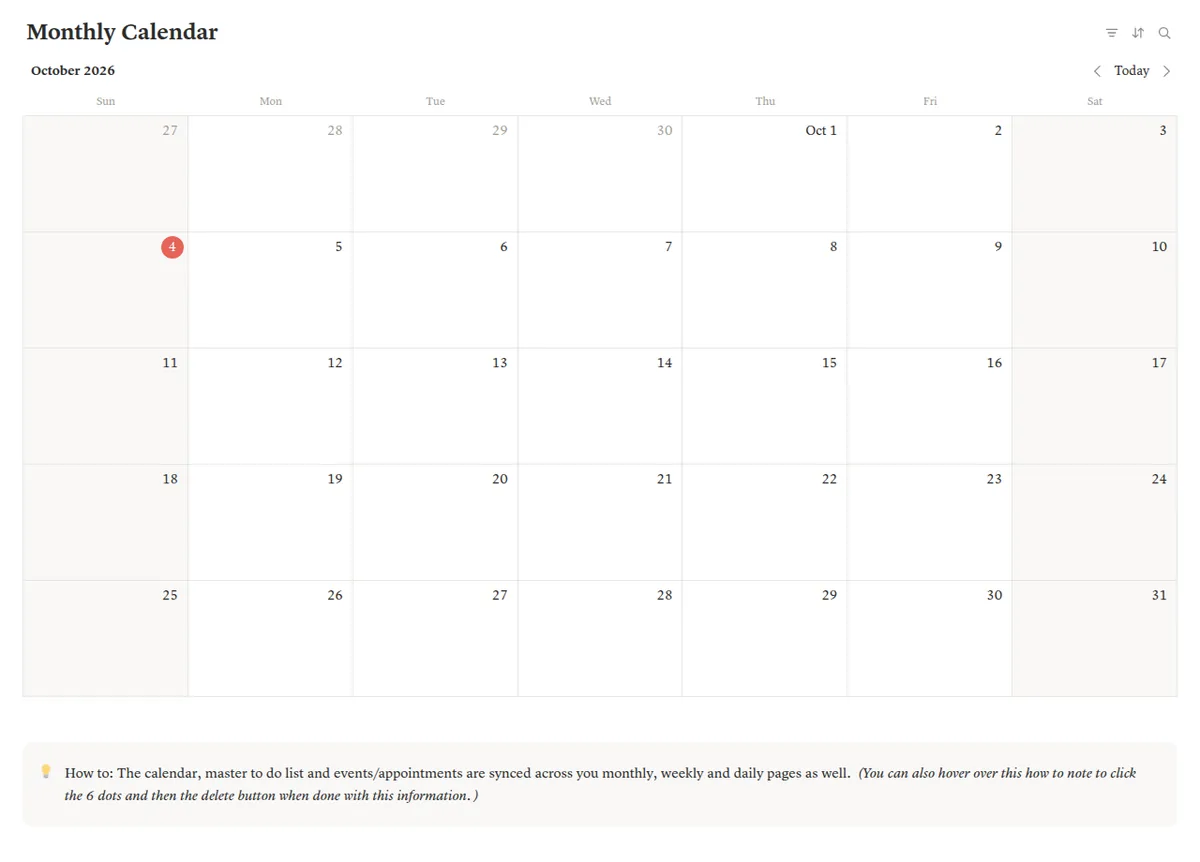
We're the Cosmo Suite team that sells the Notion Life OS template, which gives us a stake in the conclusion. Methodology: the parts, the wiring table and the screenshots come from the template as delivered to buyers, opened in a browser on 4 October 2026. The rows marked "Add it yourself" are not in the template.
The build hours are our step-by-step estimate, not a study. Definitions of linked views, relations and rollups and the Free plan details come from Notion's help center and pricing page. The progress-monitoring finding comes from the Psychological Bulletin meta-analysis cited above. Everything was checked on 4 October 2026. Notion changes its plans and features from time to time, so check the current limits on Notion's pricing page before you rely on them. The screenshots show the template with its sample data. You can read who we are and how to contact us and how we write and fact-check posts.
Where Notion Life OS Fits
Individual pages are easy to make. The real effort goes into connecting them, so a task you add once appears wherever you plan, and into keeping that connection usable every day.
Notion Life OS gives you that structure. It is one Notion template with a central dashboard: quote of the day, today's main goal, top priorities and notes. It has five life areas (Lifestyle, Wellness, Finances, Health & Fitness and Productivity) and a Planner Hub with daily, weekly and monthly planner pages. A master to-do list tracks category, due date and status. An events and appointments list holds fixed dates, such as a dentist visit or a birthday. A weekly habit tracker and a monthly calendar sit on the same page. The calendar, to-do list and events show up across the daily, weekly and monthly pages.
It also has a Google Calendar link, a weather widget, light and dark themes and a YouTube tutorial. It duplicates into a free Notion account and costs $9 once. Relations and rollups for goals or spending are additions you can make with Notion's relations guide.
If you'd rather build your own, the relations and rollups guide in Notion's help center (linked above) is the place to start. If you'd rather start using one this week, you can see every page in the Notion Life OS template with its dashboard, planner pages and habit tracker.
Frequently asked questions
Is a Life OS only for Notion?
No. The idea works in any tool that can show one list in several places, and some people run one in a database app or even on paper. Notion is a common choice because linked views, relations and rollups are built in, and the Free plan covers one person's whole life. The tool matters less than whether your pages feed each other.
How long does it take to set up a Life OS?
It depends on whether you build or start from a template. Our step-by-step estimate for building a five-area system with a dashboard, planner pages and three databases from blank pages is roughly 12 to 21 hours. From a finished template, the setup is much shorter: duplicate it, delete what you don't need and add your real tasks.
Can I run a Life OS on the free Notion plan?
Yes. Notion's pricing page lists the Free plan as made for individuals to organize personal projects and life, with unlimited pages and blocks for a single member. Linked views, relations and rollups all work there. The limit you are most likely to hit is the 5 MB cap on each file upload.
What is the difference between a Life OS and a planner?
A planner holds dates and lists. A Life OS holds the same things, but each record lives in one place and shows up wherever it is needed: a task appears on today's page, this week's page and its area. If you copy the same task into three lists, you have a planner with more tabs.
How many areas of life should a Life OS cover?
Start with the ones you already manage, usually four to six. Notion Life OS uses five: Lifestyle, Wellness, Finances, Health & Fitness and Productivity. Add an area only when you catch yourself keeping that part of your life somewhere else. An empty area is noise you will scroll past every day.
What is the fastest way to get a working Life OS?
Start from a template whose dashboard, planner pages and databases are already connected, then spend your first week only on capture and one weekly review. Notion Life OS gives you a dashboard, five life areas, daily, weekly and monthly planners, a master to-do list, a habit tracker and a video tutorial for a one-time $9. Strip what you don't use before adding anything.
